Ncell Roaming Guide 2026: How to Manage Services Remotely via Ncell App
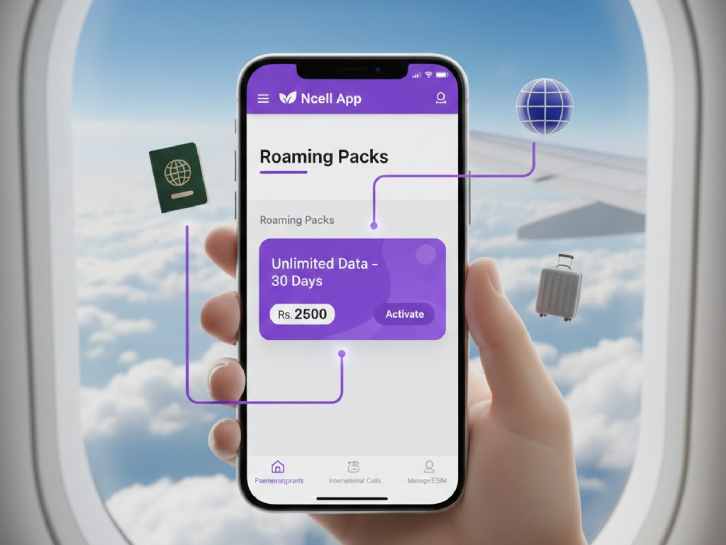
Managing your mobile service while traveling abroad used to mean high bills or the stress of finding a local SIM the moment you landed. In 2026, the Ncell App has changed that. You can now manage your roaming settings, buy data packs, and check your balance from anywhere in the world—whether you’re in a hotel in Dubai or a cafe in Delhi.
Here is a practical guide on using the Ncell App to stay "Sadhain ON" without the roaming bill shock.
If you’ve ever returned from an international trip to a mobile bill that cost more than your flight, you know how important it is to control your roaming. For Ncell users, the days of calling customer care or memorizing long USSD codes are mostly over. The Ncell App is now a full-service remote control for your SIM.
Here is how you can use it to manage your connectivity while you are outside Nepal.
1. Activating Roaming Before (or After) You Leave
While Ncell roaming is often active by default for many countries, destinations like India still require manual activation.
How to do it in the app:
- Open the Ncell App and log in.
- On the home screen, look for the Roaming tab (usually found in the 'Services' section).
- Toggle the "Roaming Service" to ON.
- The Trick: If you forgot to do this in Nepal, you can still open the app over a hotel Wi-Fi abroad to activate it. You don't need a mobile signal to use the app as long as you have internet.
2. Buying "Sadhain ON" Roaming Packs
Using "Pay-As-You-Go" data while roaming is the fastest way to empty your balance. Instead, you should always look for a pack.
In 2026, Ncell’s Sadhain ON 1799 Roaming Pack is the top choice for frequent travelers. For Rs. 1,799, you get:
- Unlimited local calls in Nepal.
- 600 MB of roaming data and 10 minutes of calls (Incoming/Outgoing) specifically for countries like India, China, and the UAE.
- Travel insurance benefits.
To buy a pack remotely: Go to the 'Buy Packs' section in the app, select 'Roaming,' and pick the country you are in. The app will show you exactly which plans are available for that specific region.
3. Monitoring Your Balance and Usage
The most useful feature of the app is the Real-Time Dashboard. When you are roaming, your phone might run background updates that eat up data.
By checking the app, you can see exactly how many MBs of your roaming pack are left. If you see the balance dropping too fast, you can quickly toggle off data roaming in your phone settings or buy a "Booster Pack" directly from the app.
4. Remote Troubleshooting (If your SIM isn't working)
If you land in a new country and your phone shows "No Service," the Ncell App can still help:
- Customer Support Chat: Use the app’s built-in chat or the "Help" section to talk to an agent over Wi-Fi.
- APN Settings: The app provides a guide on setting your Access Point Name (APN) to 'web', which is a common requirement for Ncell data to work on Android devices abroad.
- Network Manual Selection: If your phone doesn't connect automatically, the app can show you which local partner (like Airtel in India or Etisalat in the UAE) you should manually select in your phone settings.
Summary: Your Roaming Checklist
- Recharge before you go: Use the app to top up your balance via eSewa, Khalti, or a card so you have enough for a roaming pack.
- Turn off "Auto-Updates": Prevent your apps from updating over roaming data.
- Use Wi-Fi for the App: The Ncell App is free to use on the Ncell network in Nepal, but while abroad, try to use Wi-Fi to avoid even small data charges while you are buying your packs.